1Password
Written By Mikel from Gorelo
Integrating 1Password with Gorelo allows you to sync 1Password items across your vaults into Gorelo for use in search, embedding, related items and more.
We recommend the MSP Edition
https://1password.com/product/enterprise-password-manager-msp-edition
Understanding 1Password
Vaults in 1Password
Vaults can be used to restrict item access to certain groups (and users) in 1Password. There are two common approaches here:
Vaults based on roles E.g. L1, L2, Management, Accounts etc.
Vaults based on clients E.g. Acme Corp, Blackrock etc.
Tags in 1Password
1Password uses the concept of tags as opposed to folders for organisational purposes. One of the advantages here is that tags span across all vaults and result in a aggregated list. Folder-like nesting can be achieved with tags by using ‘/‘ forward slash E.g. ‘Clients/Acme Corp’ would result in a top-level tag of Clients and then a sub-tag of Acme Corp
Best practice structure for Gorelo
Our recommended approach is to structure your vaults based on roles as this offers the most flexibility and scalability.
To then organize by client, we’ll use tags. Password items in Gorelo that have been assigned to a client will be tagged in 1Password with ‘Clients/{{client.Name}}’. This will allow you to search/navigate using the client name in the native 1Password app, extension etc.
Granting access to 1Password Vaults
Granting access to 1Password vaults can be achieved similarly in both 1Password and Gorelo.
In 1Password
1Password user > 1Password group > 1Password vault
In Gorelo
Gorelo user > Gorelo group > 1Password vault
There is no inherent link between Gorelo users/groups and 1Password users/groups — you will need to configure these independently.
Integrate with 1Password
Navigate to Settings → Integrations
Click the ⚙️cog icon to configure 1Password
Fill in the required fields
URL
In any 1Password application, right-click an item and choose ‘Copy Private Link’ and paste it here to auto-fill your Custom Domain and Account ID E.g
https://start.1password.com/open/i?a=ABCD1EFGH2IJKL3MNOP4QRST5U&v=abcd1234efgh5678ijkl9012mn&i=zyxw9876vuts5432rqpo1098ml&h=acme.1password.com
Custom Domain
This is your 1password.com subdomain and will be auto-filled by your 1Password URL above E.g
acme.1password.com
Account ID
This is your account ID and will be auto-filled by your 1Password URL above E.g
ABCD1EFGH2IJKL3MNOP4QRST5U
Service Account Token
Navigate to your 1Password admin console > Developer > Service accounts
Click ‘New service account’ up the top right
Enter ‘Gorelo’ as the name
Choose your vaults and give write permissions
Create the account and copy the service account token into Gorelo
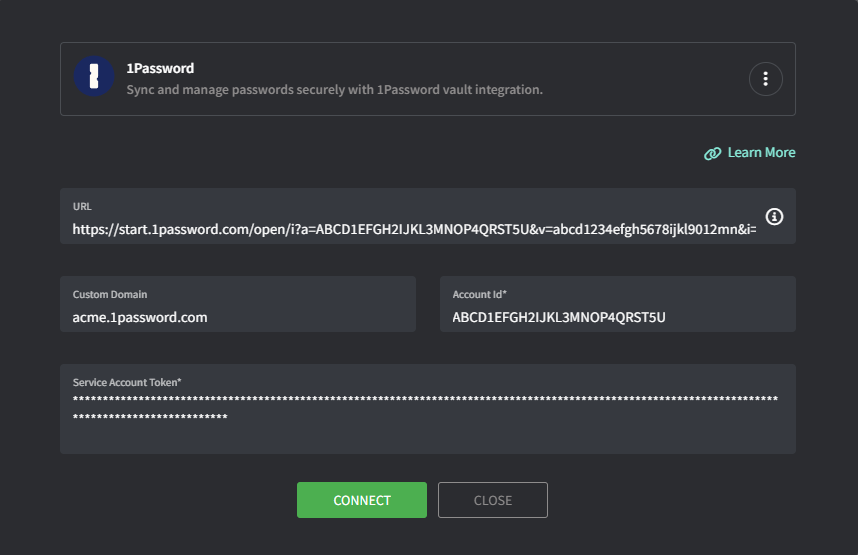
Click Connect and the Group <-> Vault mapping screen will appear
Map Gorelo Groups to the appropriate 1Password Vaults
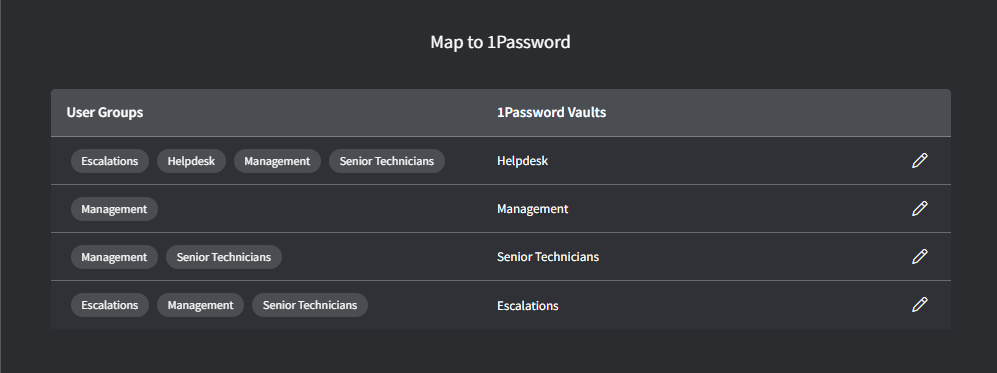
Click Map when complete
Was this helpful?
Still need help? Share an idea