Write to a custom asset field (MAC Address for Ethernet)
Written By Mikel from Gorelo
You can write to a custom asset field via scripts. This is useful for things such as BitLocker keys, rotating local admin passwords and third-party UID’s.
In this example, we'll write the MAC Address for WOL use.
Step 1: Create the custom asset field
Navigate to Settings -> Assets -> Custom Fields
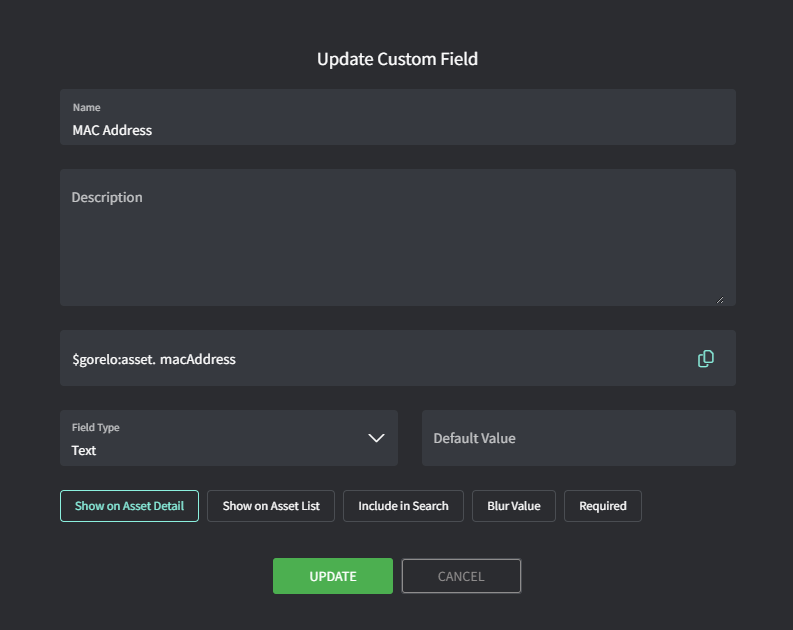
Add custom field with the following details
Name: MAC Address
Variable: macAddress
Step 2: Create the script
Navigate to Scripts
Create a script with the following details:
Name: MAC Address for Ethernet
Content:
# Get Ethernet adapter MAC address only
$MacAddress = (Get-NetAdapter | Where-Object {$_.Name -like "*Ethernet*" -and $_.Status -eq "Up"} | Select-Object -First 1 -ExpandProperty MacAddress)

if ($MacAddress) {
    GoreloAction -SetCustomField -Name 'asset.macAddress' -Value $MacAddress
    Write-Host "Ethernet MAC Address set to: $MacAddress"
} else {
    Write-Host "No active Ethernet adapter found"
}
Step 3: Deploy the script via a policy
Navigate to Policies
Edit an existing policy that covers the assets you want to store the MAC Address for
Add the 'MAC Address for Ethernet' script and set to repeat at your preferred interval
Save and Distribute the policy
Was this helpful?
Still need help? Share an idea