Gorelo Connect for macOS
Written By Mikel from Gorelo
Installing Gorelo Connect for macOS
Automatic Install
Gorelo Connect is automatically installed on new assets when the RMM agent is first installed.
Manual Install
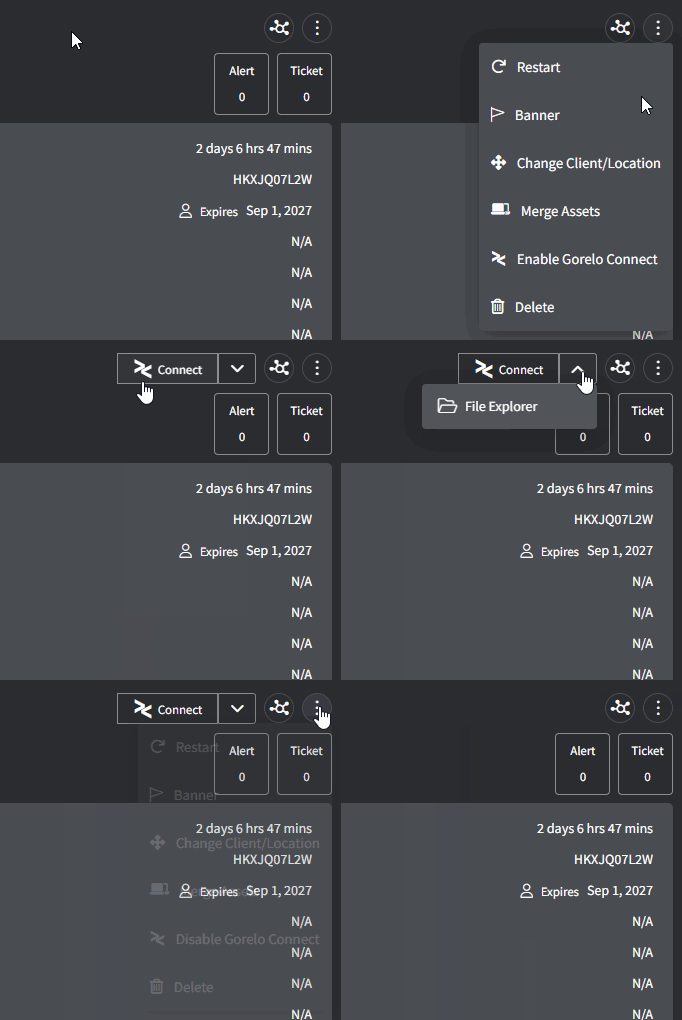
For existing macOS assets, Gorelo Connect can be manually enabled/disabled via the 3-dot menu. This can be used to manually install Gorelo Connect or to go through a reinstall process.
Granting ‘Privacy & Security’ Permissions
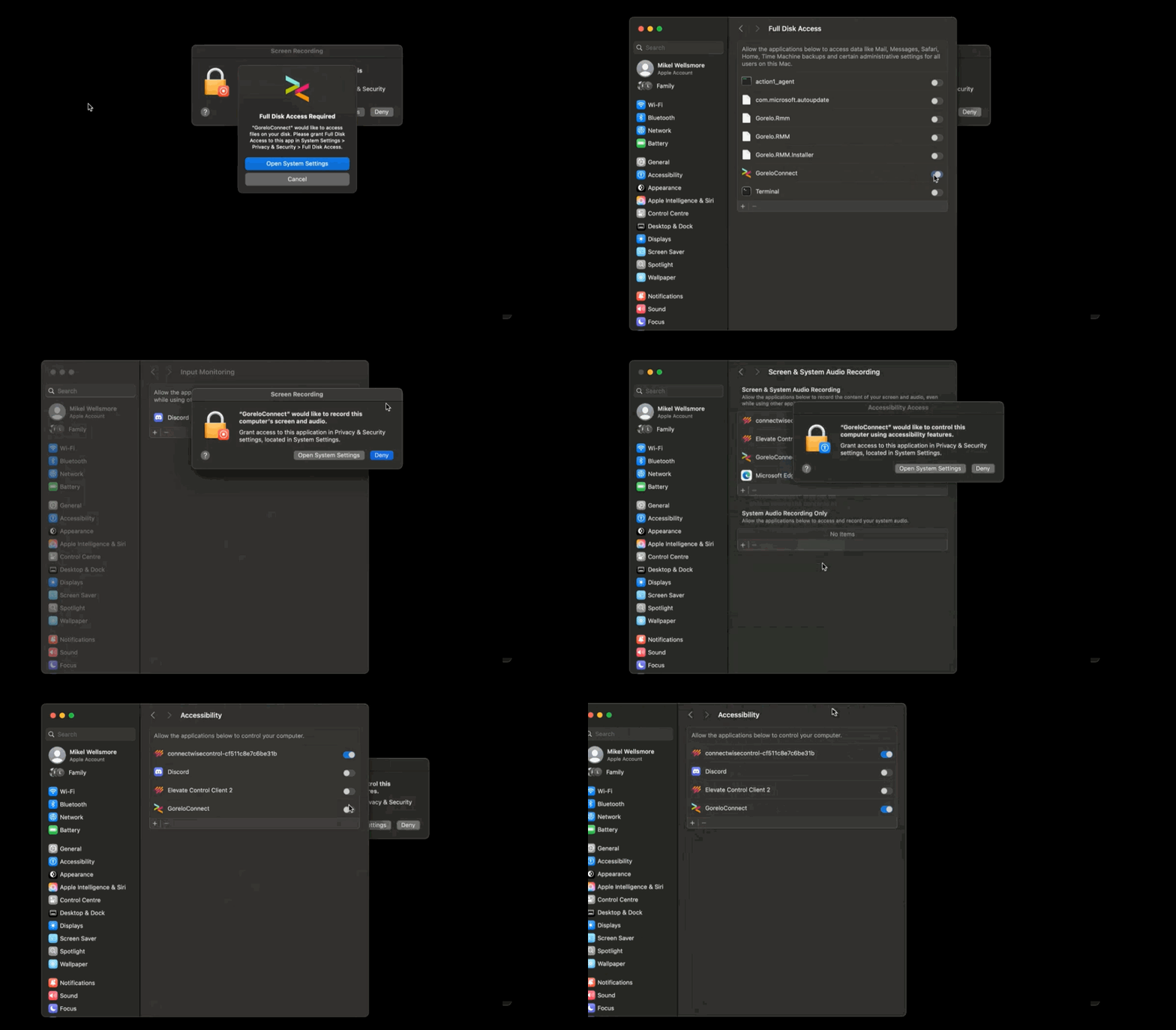
On the first install (automatic or manual), you will be prompted to grant permission for Gorelo Connect in three areas:
Full Disk Access
Accessibility
Screen & System Audio Recording
Select ‘Open System Settings’ on each popup and toggle on access for GoreloConnect — ‘Quit & Reopen’ if requested.
Troubleshooting
Was this helpful?
Still need help? Share an idea